> ## Documentation Index
> Fetch the complete documentation index at: https://docs.innate.bot/llms.txt
> Use this file to discover all available pages before exploring further.

# Connecting to a robot

The Innate App connects to your robot via WiFi. It can also work with your phone hotspot.

## First-Time Connection

If this is the first time you are connecting, the app will guide you through an onboarding flow:

1. **Bluetooth Pairing** — The app uses Bluetooth Low Energy (BLE) to discover your robot and configure its network settings

2. **WiFi Configuration** — Tell the robot which network to connect to

3. **Connection** — Once on the same network, the app connects to the robot via WiFi

The robot publishes its hostname with a `.local` suffix (e.g., `mars-robot.local`), making it easy to connect even if the IP address changes.
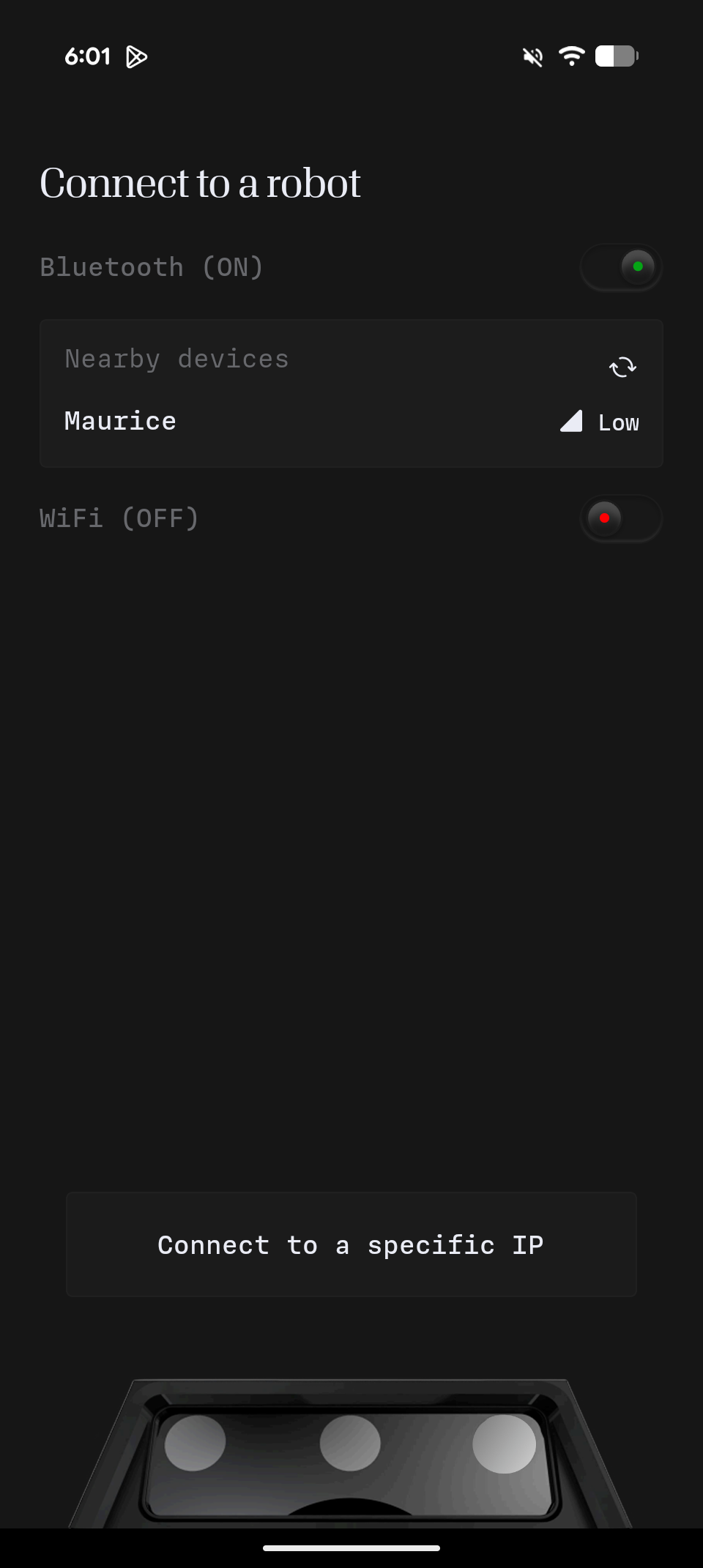
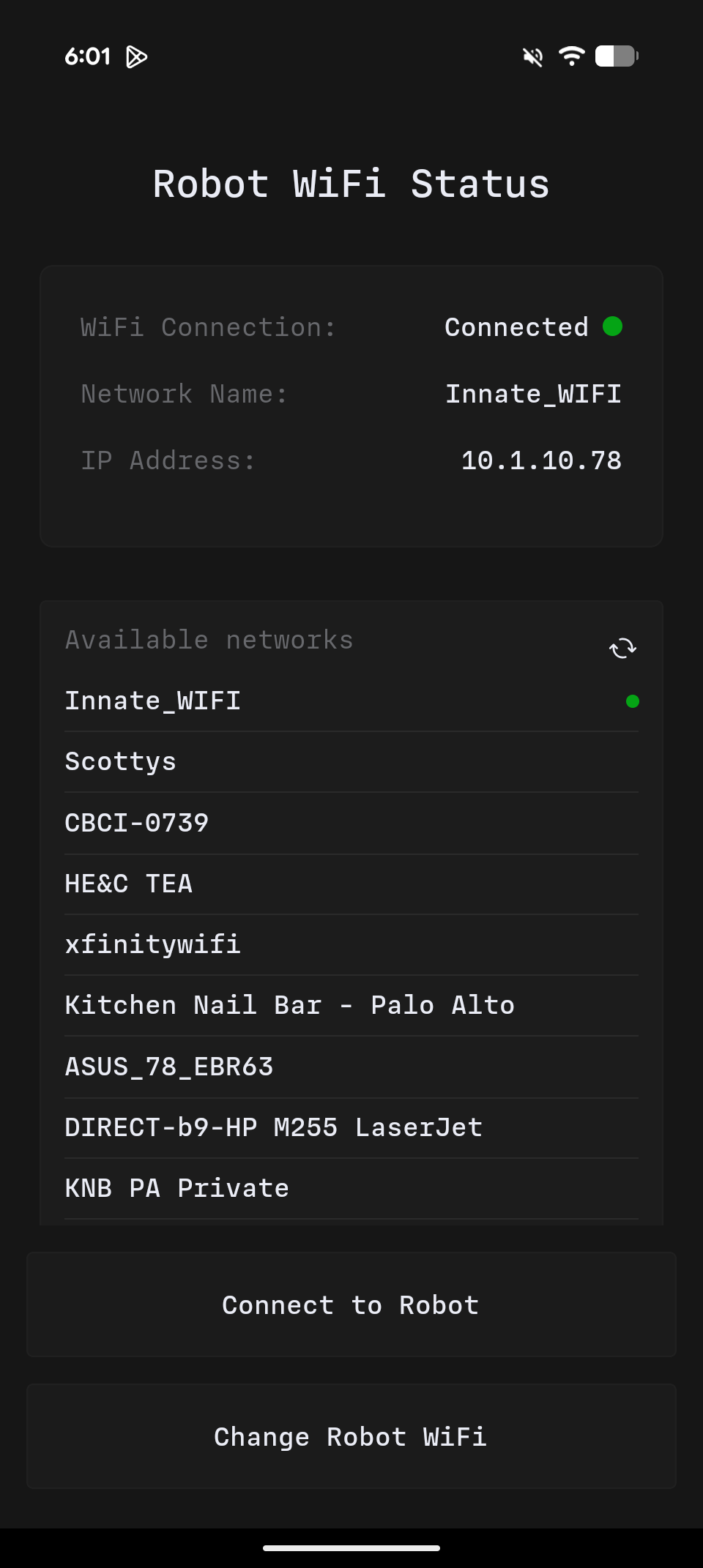
<Frame caption="Press on the robot when it appears to connect via bluetooth">
  <img src="https://mintcdn.com/innateinc/hx7RaA7br-n-YY5y/images/main/robots/innate-controller-app/connect-step-1.png?fit=max&auto=format&n=hx7RaA7br-n-YY5y&q=85&s=ae1b4925fb9e31c660977eb8714a49db" width="375" data-path="images/main/robots/innate-controller-app/connect-step-1.png" />
</Frame>

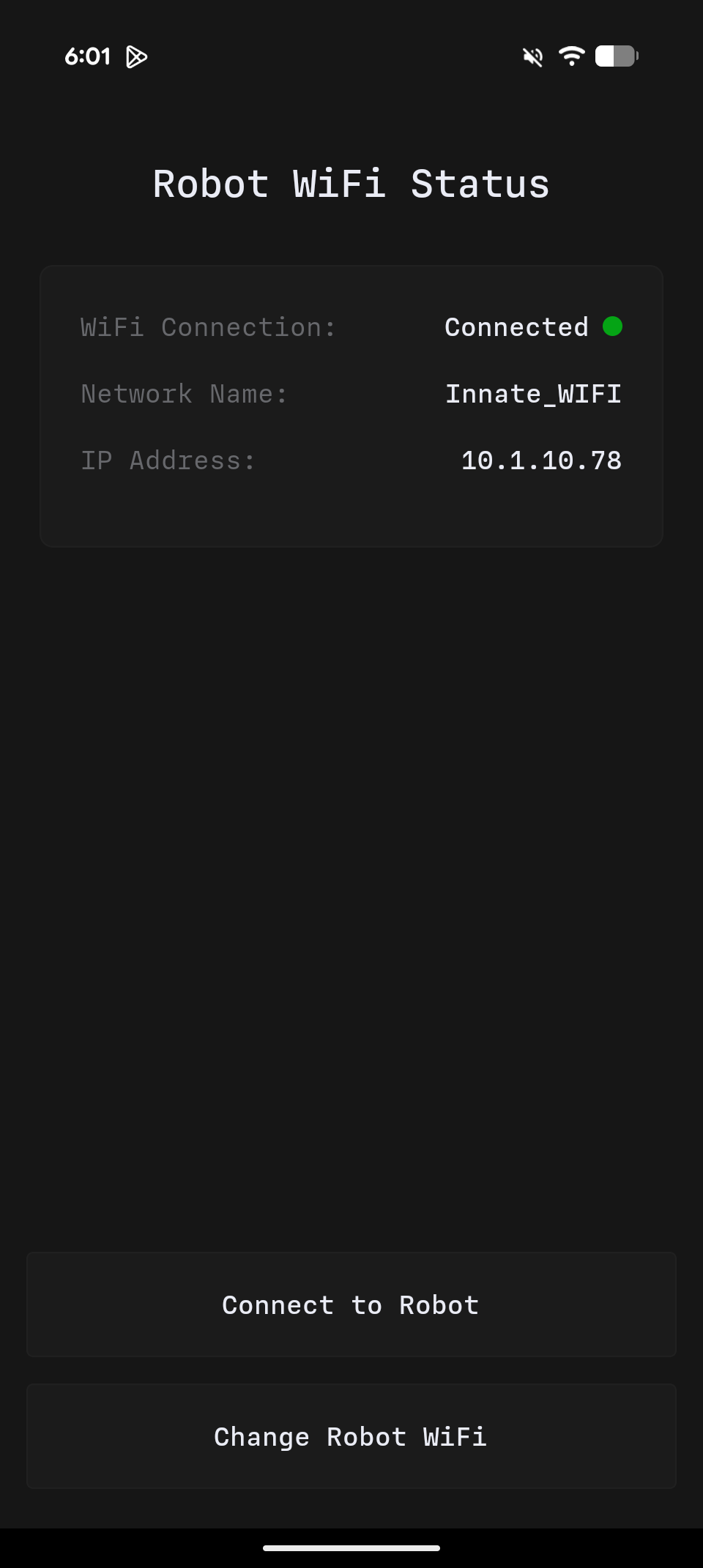
<Frame caption="If it's already on the same network than your phone, you can connect">
  <img src="https://mintcdn.com/innateinc/hx7RaA7br-n-YY5y/images/main/robots/innate-controller-app/connect-step-2.png?fit=max&auto=format&n=hx7RaA7br-n-YY5y&q=85&s=affe8f5362bfbc9b85d07b7d0fd718fb" width="960" height="2142" data-path="images/main/robots/innate-controller-app/connect-step-2.png" />
</Frame>

<Frame caption="Otherwise, select &#x22;Change Robot WiFi&#x22; to pick another network to connect it to">
  <img src="https://mintcdn.com/innateinc/hx7RaA7br-n-YY5y/images/main/robots/innate-controller-app/connect-step-3.png?fit=max&auto=format&n=hx7RaA7br-n-YY5y&q=85&s=5c2c27c67b2eb842bd91f802fe3d8d56" width="375" data-path="images/main/robots/innate-controller-app/connect-step-3.png" />
</Frame>

Once connected, you can also get your current IP on the network in the Configuration Tab -> WiFi