> ## Documentation Index
> Fetch the complete documentation index at: https://docs.innate.bot/llms.txt
> Use this file to discover all available pages before exploring further.
# Stereo Depth Calibration
MARS now has stereo depth vision for navigation and obstacle avoidance. Since cameras can vary slightly from unit to unit, each robot must be calibrated.
If depth calibration is missing (or removed), navigation automatically falls back to non-depth mode. This can help if you suspect depth calibration is hurting navigation quality.
Run this calibration:
* After your first setup.
* After major OS updates that include depth changes.
* Any time depth readings look wrong or unstable.
***
## 1) Prepare the calibration board
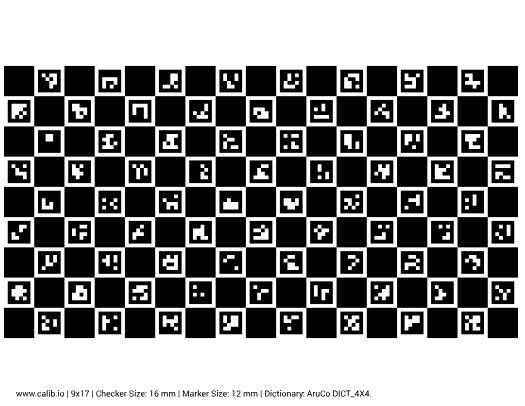
Download and print the official board:
* [Download calibration board (PDF)](https://github.com/innate-inc/web-docs/blob/main/.gitbook/assets/mars-calibration-board.pdf)
Important setup notes:
* Print at **100% scale** (no "fit to page" scaling).
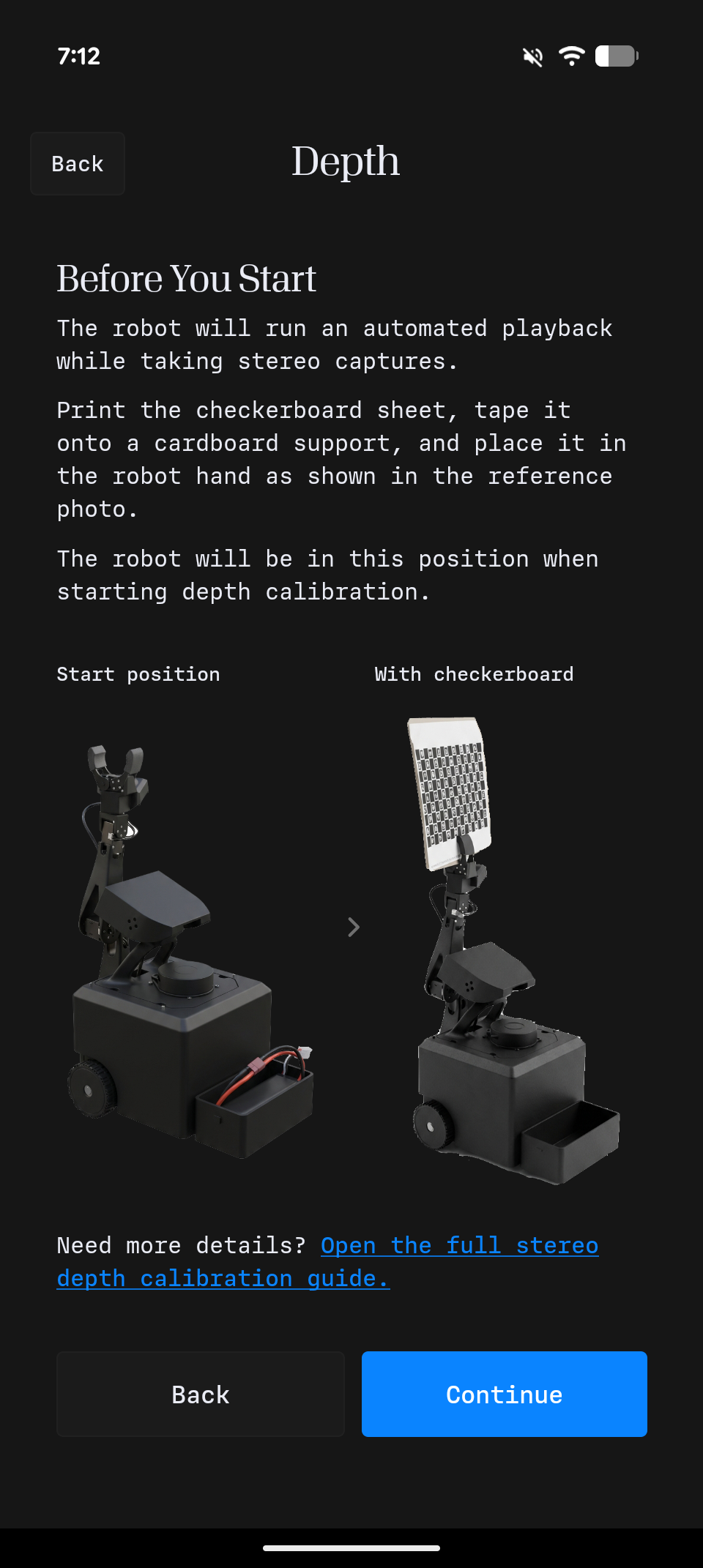
* Cut a letter-sized piece of cardboard.
* Stick the printed board flat on the cardboard.
* Do not cover any checker squares or markers.
* The outside edges do not need to be perfect; the board being flat is what matters.
***
## 2) Start calibration from the app
Make sure your phone is connected to the same robot session.
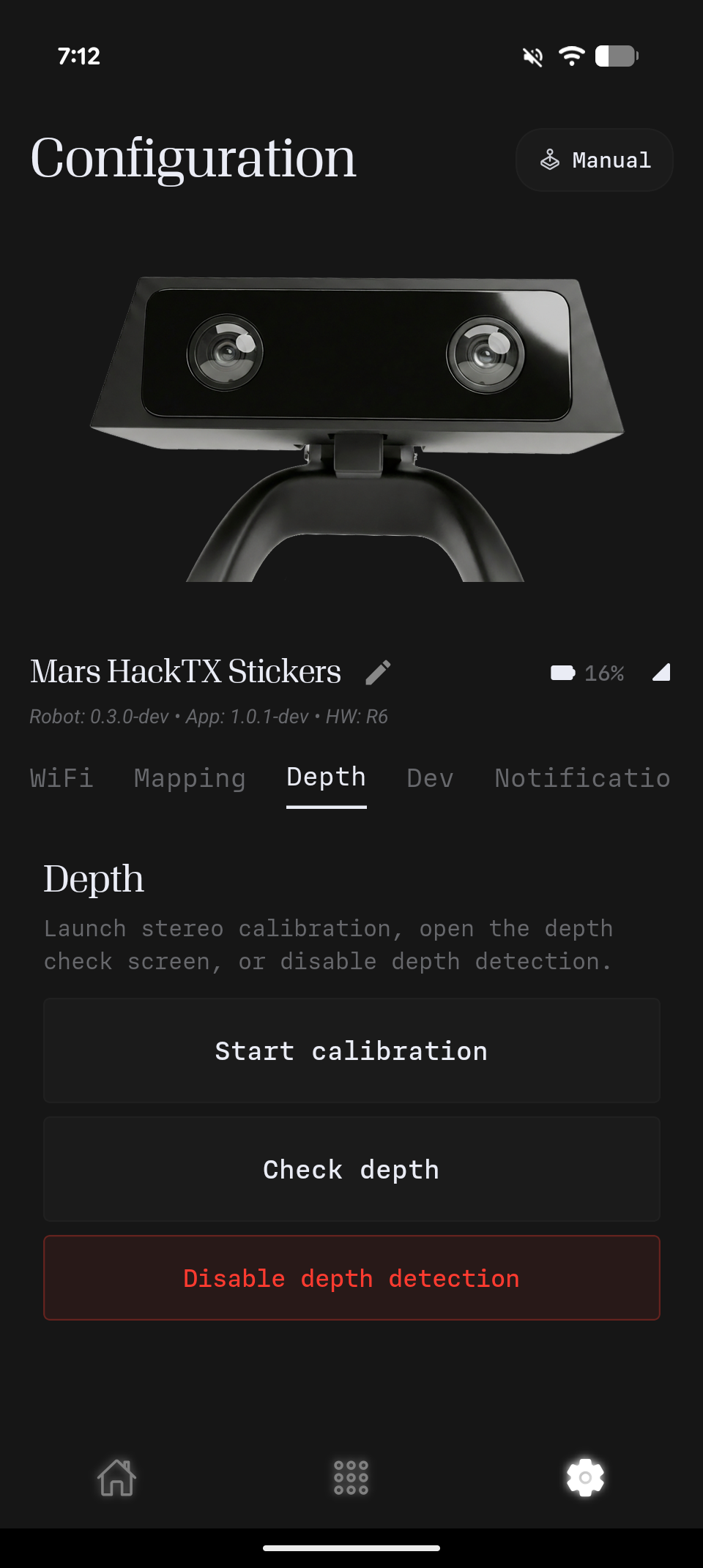
Use the **Configuration** tab, open **Depth**, then start calibration.
Place the board in front of the hand with the calibration pattern facing the robot's head, then hold it steady until MARS grabs it.
***
## 3) Let calibration finish
* Keep clear while MARS runs the calibration sequence.
* Wait for the app to report completion.
* If calibration fails, repeat the process with better board flatness and stability.
After completion, run **Configuration -> Depth -> Check depth** to validate readings before normal navigation.
 Important setup notes:
* Print at **100% scale** (no "fit to page" scaling).
* Cut a letter-sized piece of cardboard.
* Stick the printed board flat on the cardboard.
* Do not cover any checker squares or markers.
* The outside edges do not need to be perfect; the board being flat is what matters.
***
## 2) Start calibration from the app
Important setup notes:
* Print at **100% scale** (no "fit to page" scaling).
* Cut a letter-sized piece of cardboard.
* Stick the printed board flat on the cardboard.
* Do not cover any checker squares or markers.
* The outside edges do not need to be perfect; the board being flat is what matters.
***
## 2) Start calibration from the app