
This page covers controlling MARS with the app and leader arm, getting connected for the first time, and SSH access.

Control via app, web, and leader arm

MARS is controllable from the phone app and the web app — both with live video, driving, and leader-arm teleoperation. Pick your surface below.

Android APK (1.3.0)

Direct APK download.

iOS TestFlight

Join the iOS beta on TestFlight.
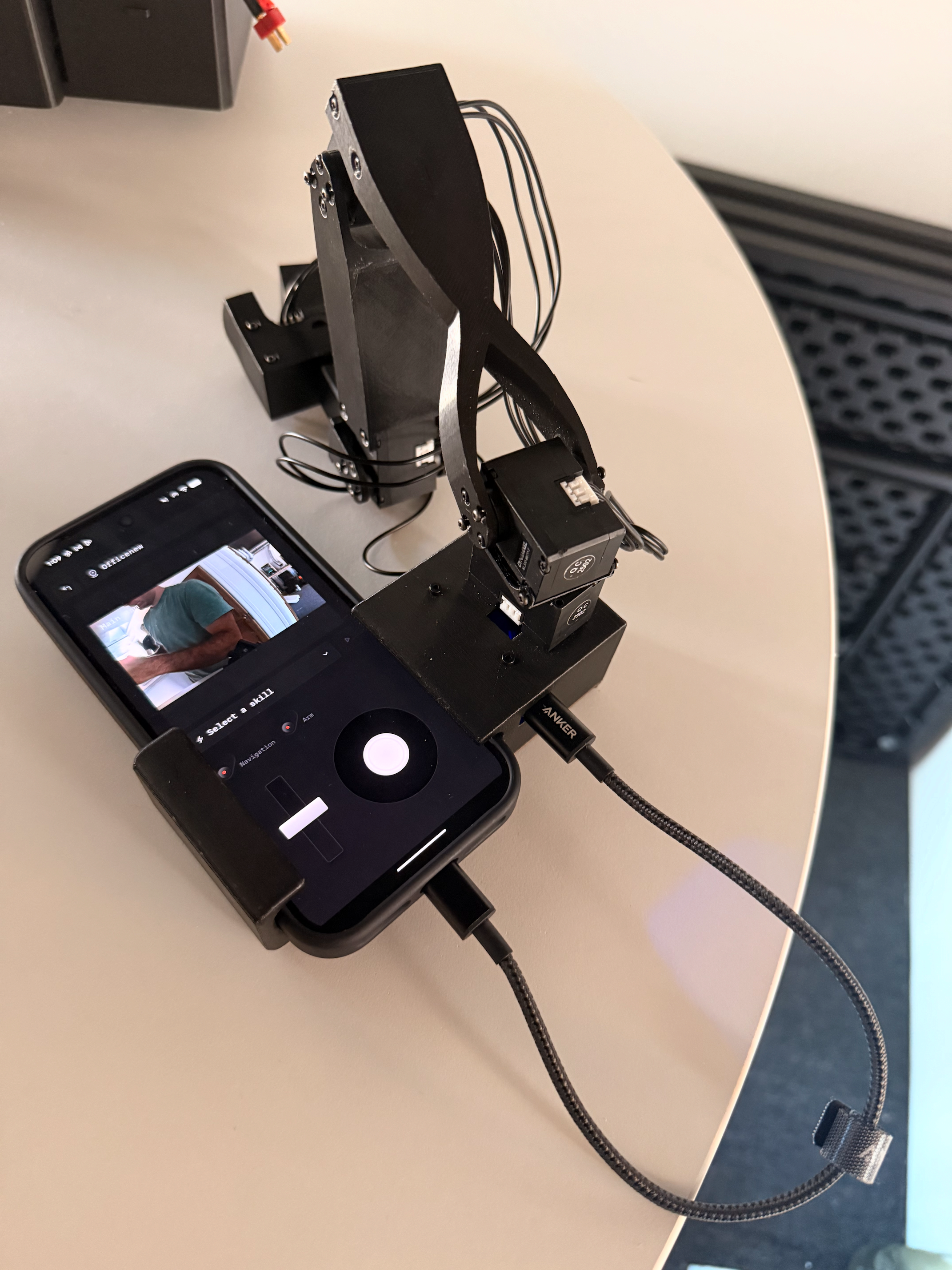
For the full feature list and current version numbers, see the Controller App overview.Every MARS robot comes with a leader arm attachable to your phone:
The app automatically recognizes your arm. Press the red Arm button to control MARS with the leader arm — MARS’s arm should start mirroring your movements within a second. If it doesn’t, check that the USB-C cable is seated on both ends and that the arm shows as connected in the app. For best results, stand behind the robot while teleoperating.
Using an iPhone? The leader arm connects over USB-C and doesn’t work with iOS devices yet. Ping us on Discord and we’ll get you a free Android phone for leader arm teleoperation.

What the leader arm is (and isn’t)

The leader arm is a teleoperation controller, not a second robot. You pose it joint-by-joint and MARS’s own arm mirrors the motion, puppet-style — so a few things that look like missing pieces are by design:
  • It has no camera. All perception comes from MARS’s onboard cameras. The leader arm only reports its joint angles.
  • The tip is a spring-loaded trigger, not a gripper. Squeezing the trigger drives MARS’s grasper open/closed; it doesn’t grasp anything itself.
  • Its segment proportions differ from the robot’s arm, and that’s fine. Teleoperation maps joint angles, not absolute reach, and training only records the robot’s joint state plus its camera feeds — never the leader arm’s geometry. So the difference in segment lengths has no effect on the skills you train.
In other words, the leader arm is how you demonstrate a task; the picking, seeing, and grasping all happen on MARS. Here it is being used to record a manipulation dataset:

Connecting to a Robot (Wi-Fi + BLE)

The app discovers the robot over Bluetooth, puts it on your Wi-Fi (a phone hotspot works too), then connects over the network. The full flow, with screenshots, lives here:

Connecting to a robot

Bluetooth pairing, Wi-Fi setup, and what to do when the robot changes network.
Two details worth knowing:
  • The robot publishes a .local hostname (for example mars-robot.local), so you can still reach it if its IP address changes.
  • Once connected, you can check the robot’s current IP in Configuration -> WiFi.

Connecting via SSH

SSH gives you a terminal directly on the robot (username jetson1, password goodbot) over Wi-Fi, Ethernet, or USB-C. Full instructions for all three methods, including hostname rules and static-IP setup per OS:

Connecting via SSH

The complete SSH reference — Wi-Fi, Ethernet, and USB-C recovery.