

~/innate-os/workspace/custom_agents/, it is picked up automatically — the runtime watches that directory and hot-reloads new files and edits within a second or two. No restart needed; if it ever doesn’t show up, innate service restart is the reliable fallback.
You can then activate it from the web app or the Controller App.
Using the web app
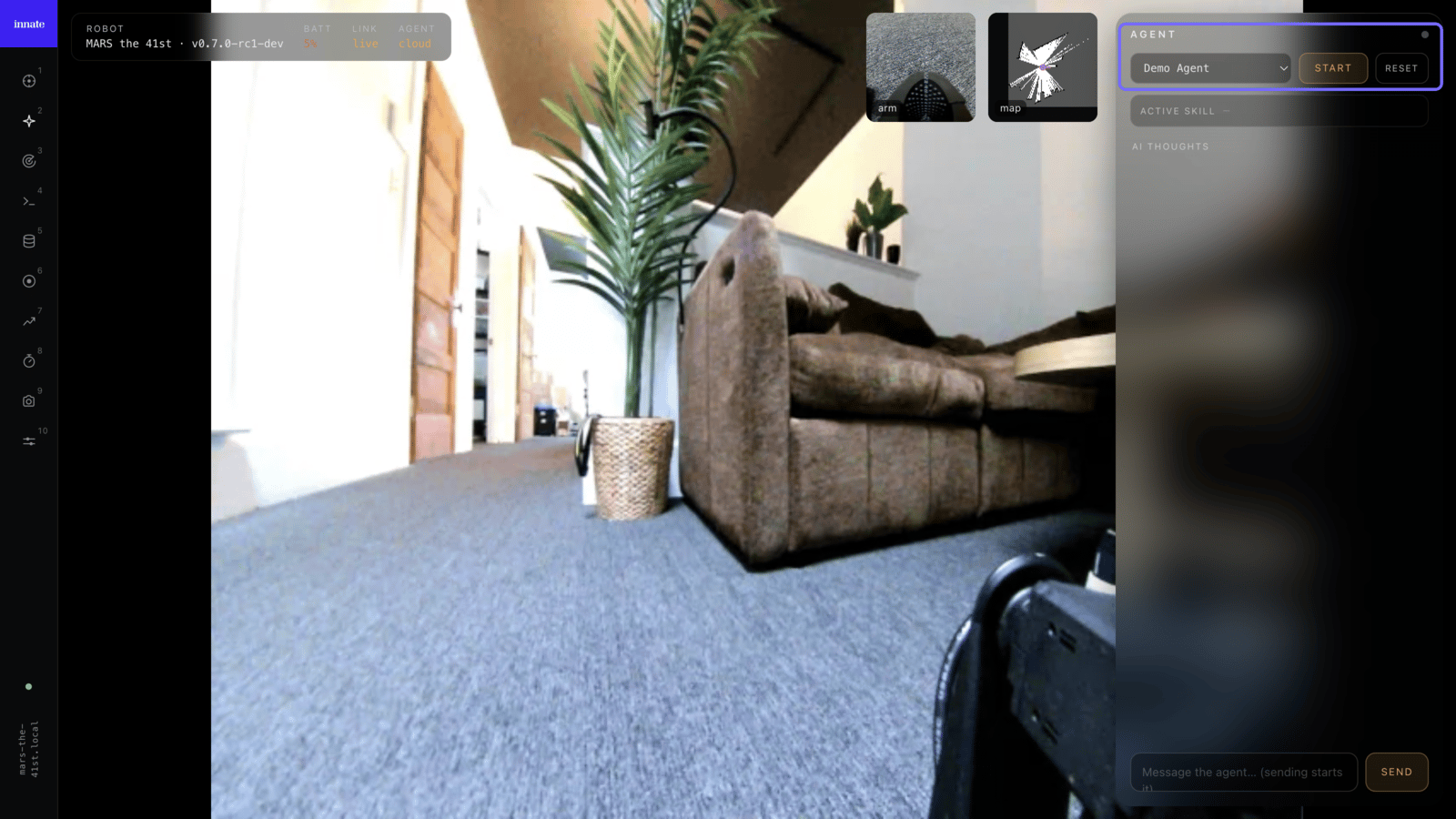
Open the web app athttps://<robot-ip> and go to the Agent page. Pick your agent from the dropdown and hit Start:
Using the Controller App
Open the Innate Controller App, connect to your robot on the same network, then go to the Home screen and tap an agent card to activate it. To switch agents, tap a different card. To stop the current one, use the stop button.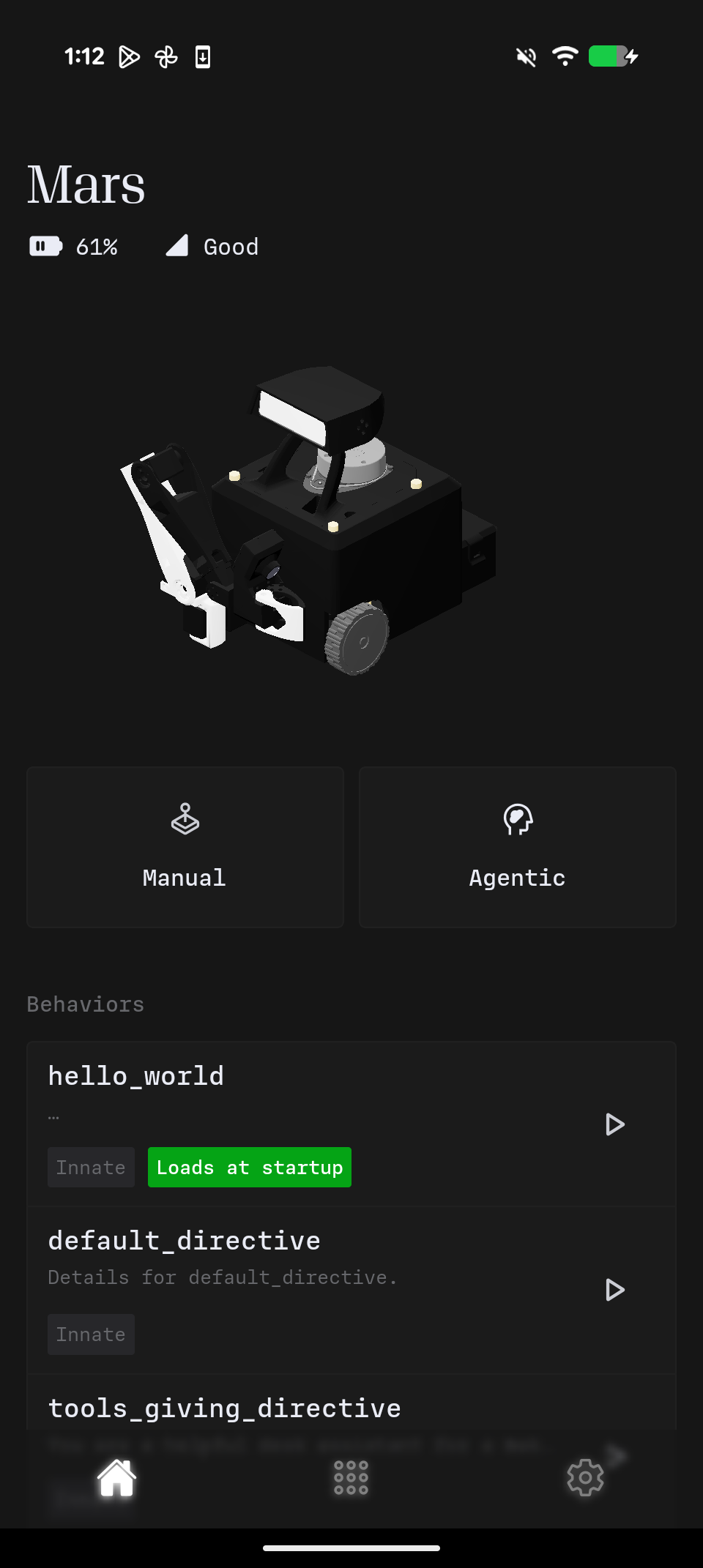
Setting a Default Agent
You can configure an agent to start automatically when the robot boots. In the Controller App, go to Home, long-press an agent card, and select Set as default. The app marks it as default. To remove it, long-press again and select Remove default.Activation Sequence
When you activate an agent, the runtime loads its skills, opens its inputs, uploads the prompt, enables gaze if configured, and starts the perception/decision loop. This typically completes in about one second — the agent’s card is highlighted as active in the app, and the robot starts reacting (thoughts and chat output appear on the Agentic screen). If the card doesn’t become active after a few seconds, see Troubleshooting below.Switching Between Agents
Switching is immediate: the current agent is torn down, the new one is loaded, and in-progress actions from the previous agent are cancelled rather than completed.Troubleshooting
Agent doesn’t appear in the app
Check that the file is in~/innate-os/workspace/custom_agents/, then on the app Home screen swipe down (pull-to-refresh) to reload the agent list. New files normally hot-reload within seconds; if yours still doesn’t appear, run innate service restart. If it still does not appear, verify the file imports without Python errors and inspect runtime logs using the Troubleshooting guide.
Agent won’t start
Check robot logs for startup errors (see Troubleshooting), confirm every skill listed inget_skills() exists, and ensure the prompt is valid for the behavior you expect.
Agent starts but robot is unresponsive
Usually this is a prompt or wiring issue. Tighten the prompt wording, verify required skills are inget_skills(), and confirm necessary inputs (for example micro) are present in get_inputs().