

- An agent is a prompt plus a list of skills. An AI model watches the camera, listens to you, and picks a skill when it fits.
- A skill is something the robot can do. It’s a Python class.
1. Open the robot and your editor
- Simulator
- MARS
Start the simulator (setup), open the web app, and open the
innate-os folder in your editor. The simulator runs straight from that folder, so saving a file changes the running robot.2. Create an agent
- On the Agent page, open the agent picker at the top left and choose Create agent.
- On the Identity tab, name it
Cheerful Agentand enter the prompt:You are an enthusiastic robot. Celebrate good news physically. - On the Skills tab, click Add skill, pick
WaveandHeadEmotion, and click Create. - Press Start and send “Hi! What can you do?” in the chat. The agent answers and picks a skill on its own.
3. Look at the file it made
The form saved your agent as a normal Python file,workspace/custom_agents/cheerful_agent.py. Open it in your editor:
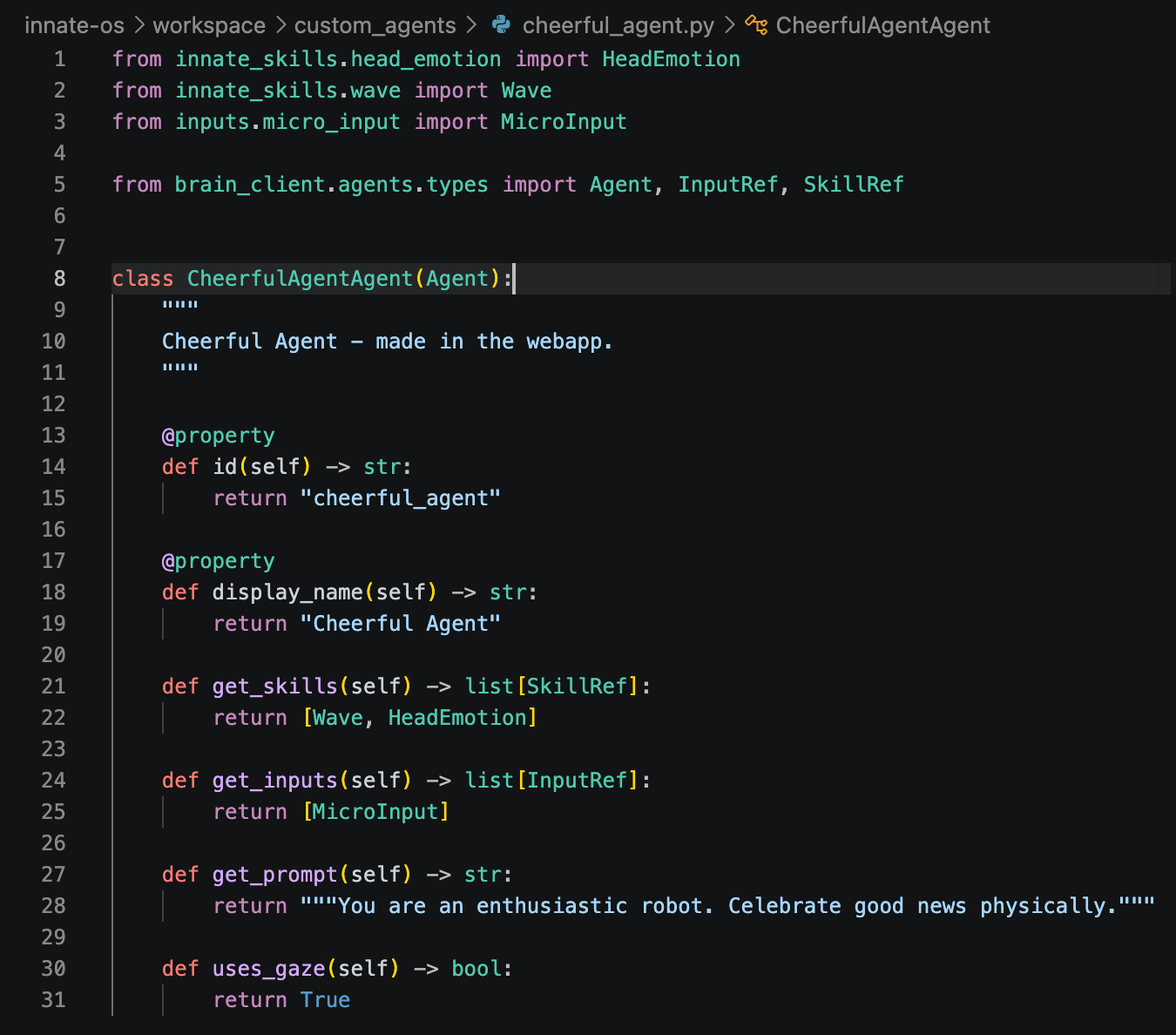
get_prompt(), and a list of skills in get_skills(). The form also turned on the microphone (get_inputs()) and made the robot look at the person it talks to (uses_gaze()). Every option is on the Agents page.
4. Write your own skill
-
Create
workspace/custom_skills/victory_spin.py: - Save. That’s the whole deploy: the robot loads the skill a second or two later, with no build or restart.
-
Open the skill menu in the web app and run
victory_spin. The robot spins.
guidelines() to decide when to use the skill, and the execute() signature and docstring to know how to call it. Edit the file, save, and run it again: that’s the whole loop.
5. Give it to your agent
- Select Cheerful Agent, open the Skills tab, add
VictorySpin, and click Save. - Tell the agent “I just merged a big PR!”. It decides on its own that good news calls for a victory spin.
When changes take effect
Next steps
Agents
Prompts that work, microphone input, and the built-in agents.
Code skills
Use the arm and cameras, return results, and chain skills together.