

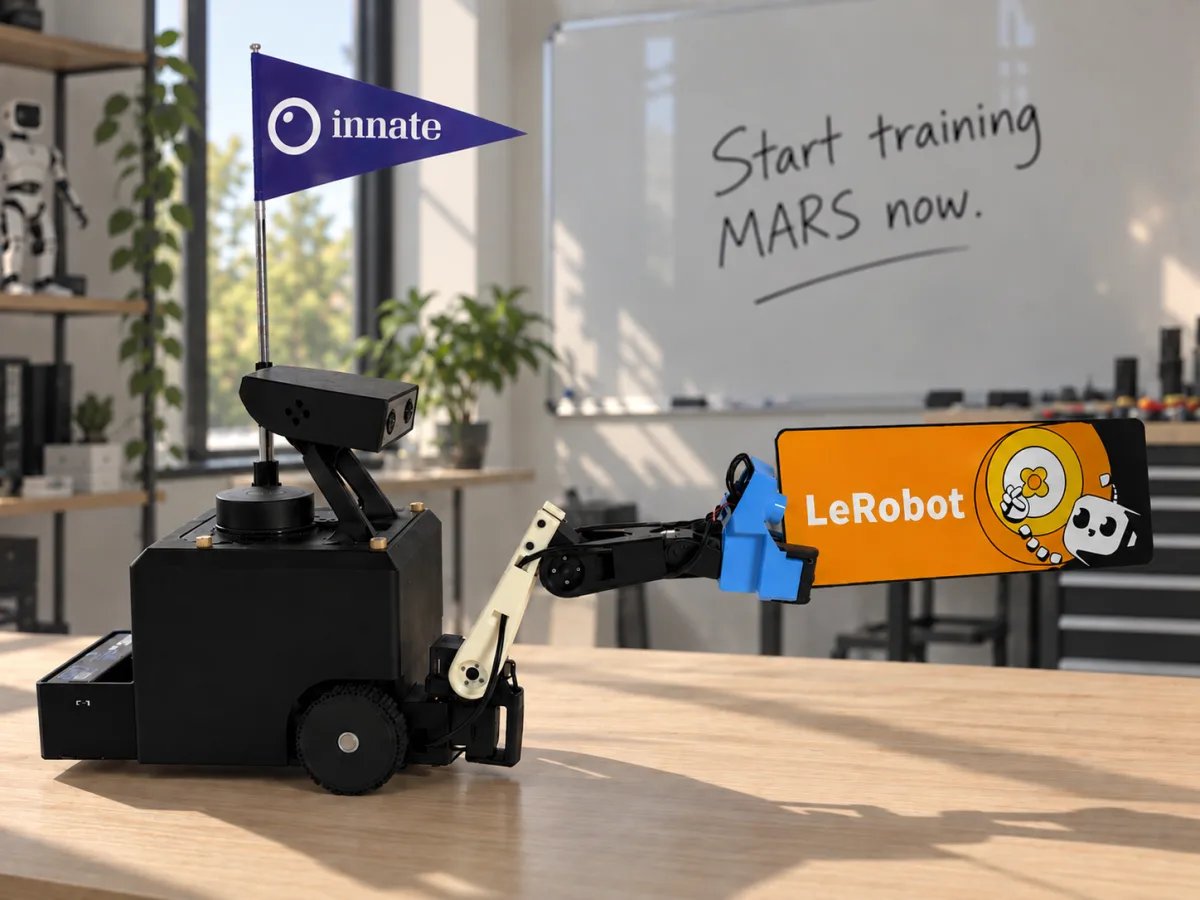
--robot.type=mars, you record a dataset, train ACT, Diffusion Policy, SmolVLA, π0 or another LeRobot policy on your own GPU, and run it on the robot.
LeRobot runs on your computer. It talks to a bridge that ships with Innate OS, over your network, and never touches ROS. Every command on this page runs on your computer.
A LeRobot policy isn’t a skill: it runs from your computer, and agents and other skills can’t call it. For a skill the robot runs on its own, train ACT in the Innate cloud instead.
An example dataset recorded this way: innate-inc/mars-pick-tv.
Before you begin
1. Set up
1
Install the MARS plugin
On your computer
uv sync installs LeRobot and the MARS plugin in .venv. Run every command on this page from this lerobot folder.2
Point it at your robot
192.168.1.42 with your robot’s IP address. It’s in the phone app under Configuration → WiFi, or run hostname -I on the robot. Set it in every new terminal.3
Connect
No 'obs' messages from the MARS bridge, check MARS_HOST, and check the robot’s Logging page for LeRobot bridge listening on :5555.4
Name your dataset
Datasets are named
account/dataset, like GitHub repositories. To upload later, log in and use your Hugging Face name:hf auth login needs a token with write permission from huggingface.co/settings/tokens. To stay offline, skip the login and set any name, for example export HF_USER=me.2. Record a dataset
Drive the robot the way you already do: the phone app, the web app’s Teleop page, or the leader arm. LeRobot records what you command.
When it finishes, the dataset is in
~/.cache/huggingface/lerobot/$HF_USER/mars-tidy-up, with data/, meta/, and videos/ folders. To check the cameras, open an episode in the viewer:
- Start small, then grow. Record 10 episodes, take them through replay below, then record more. Fifty clean episodes of one task, with the object placed a little differently each time, make a good first dataset.
- Add episodes by running the same command with
--resume=true --dataset.root=$HOME/.cache/huggingface/lerobot/$HF_USER/mars-tidy-up.num_episodesthen counts this session only.
3. Replay an episode
Before you train, play an episode back on the robot. If the replay doesn’t match what you did, training on that data won’t work either. First leave teleop in the phone app and the web app. While either one teleoperates, its commands win over LeRobot’s.4. Train a policy
Training runs on your computer. Start with ACT: it’s small, trains quickly, and works with tens of episodes.- NVIDIA GPU
- Apple Silicon
outputs/train/act_mars/checkpoints/, and last points at the newest. 20,000 steps is a good first pass; LeRobot’s default is 100,000.
- Out of GPU memory: lower
--batch_sizeand add--policy.use_amp=true. - Another policy: install its extra, then change
--policy.type. For exampleuv sync --extra smolvla, then--policy.type=smolvla. The extras arediffusion,smolvla, andpi. - Another machine: upload the dataset (see Share on Hugging Face), run step 1 there, and run the same command. It downloads the dataset.
5. Run the policy
Put the robot back in the scene you recorded in, leave teleop in both apps, then run:- NVIDIA GPU
- Apple Silicon
--duration seconds.
If it fails in a particular way, record more episodes that cover it, train again, and run again.
Optional: share on Hugging Face
Upload a dataset you recorded, so you can train on another machine or share it:--private to make it public. Public datasets also open in LeRobot’s dataset visualizer. To upload at the end of every recording session instead, leave out --dataset.push_to_hub=false when you record.
Record in the apps instead
You can record in the web app or the phone app and train with LeRobot. The robot records the cameras on board at 30 fps, so on a real robot this is usually more robust than recording over Wi-Fi. Datasets recorded before 0.8.0 work too. Publish it to Hugging Face from the web app’s Datasets page, then train and run from step 4.Use the simulator
To try this without a robot, start the simulator and setexport MARS_HOST=localhost. Every command on this page then works against the simulated robot. Drive it from its web app.
The simulator renders the head camera at 10 fps and the wrist camera at 6 fps, so a 30 fps dataset repeats frames. To render at the real robot’s 15 and 30 fps, restart it with INNATE_SIM_HARDWARE_CAMERA_RATES=1 ./innate-sim up. This needs a GPU on your computer.
Reference
Dataset features
Everything runs at 30 fps.
Robot options
Safety behavior of the bridge
To run these commands on the robot’s Jetson instead, use the
lerobot folder’s uv environment there with MARS_HOST=localhost. Never pip install lerobot into the Jetson’s system Python: it replaces the pinned numpy and breaks the camera pipeline.
Troubleshooting
Next steps
Record with the apps
Record on the robot, no terminal needed.
Train in the cloud instead
Innate trains an ACT skill for you, no GPU needed.
LeRobot docs
Every policy, and how to tune training.
Plugin README
Converting datasets from the command line, and policies from LeRobot’s
main.